
Automating OpenOCD Distribution with a Private Gitea Package Registry
Turn your OpenOCD updates from a manual chore into a one-click process. Learn how to set up a private Gitea Package Registry, upload .deb files, and install them effortlessly on any Debian-based machine. Automation made simple.

This post is part of the Tools as a Service Series. Full architecture overview here.
In previous parts, we cross-compiled and built a Debian package for OpenOCD. We then manually copied these files to our target machines. The problem with that setup is the manual labor, every time we update the package or want to use it on a new machine, we have to find the .deb file and transfer it.
In this part, we will solve this by uploading our built packages to a private Gitea Package Registry. This transforms our workflow into a complete DevOps setup, allowing us to manage versions and install packages via apt.
Before we dive into the details, let’s look at the high-level overview of our deployment pipeline:
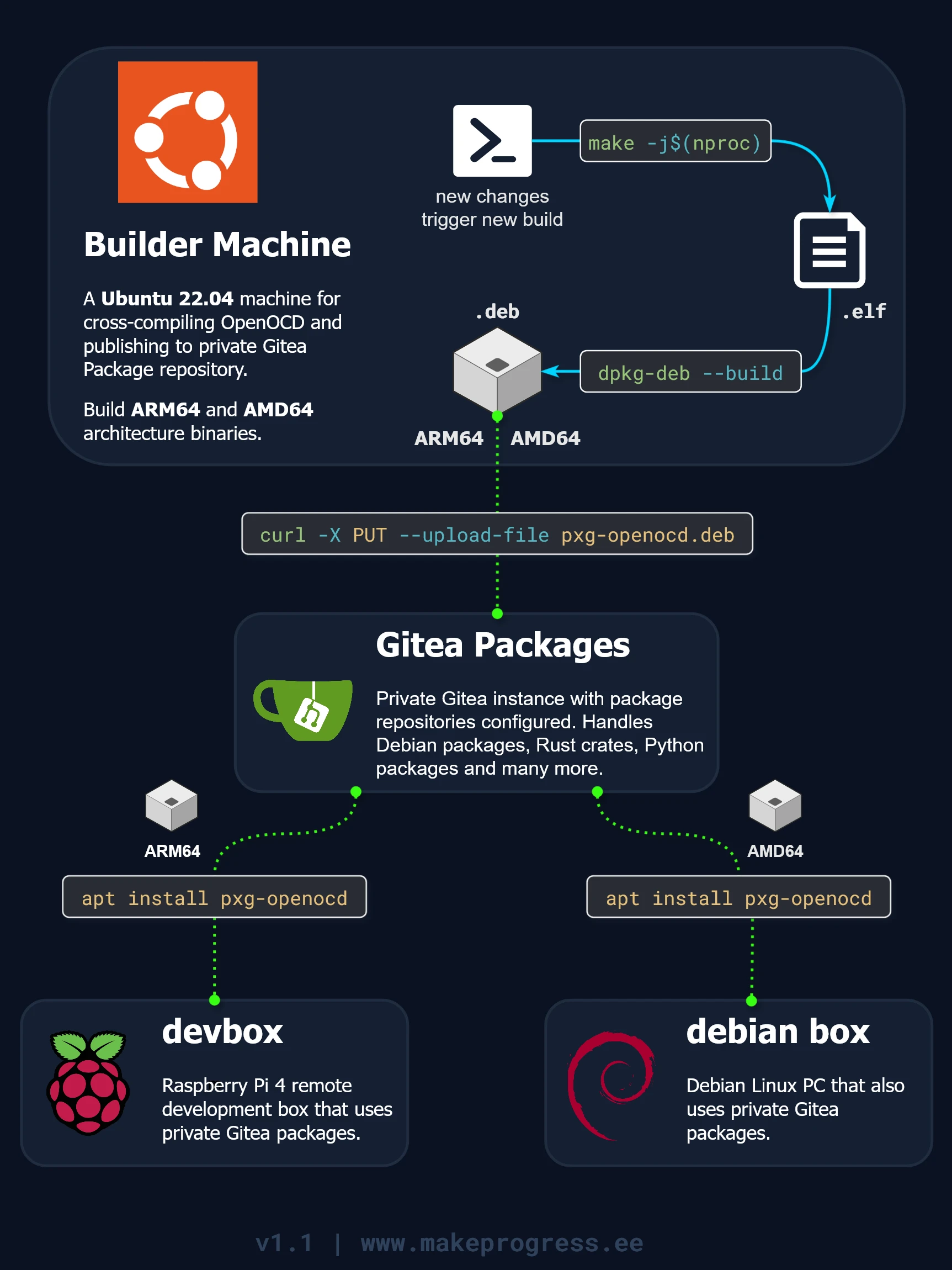
As shown in the overview above, Gitea acts as the central hub for our packages. Before we can push our first .deb file, we must configure the Gitea environment to support the Debian repository format.
Setting up Gitea for Package Management
This guide expects you to have access to Gitea, either setup yourself or using external ones with packages support.
First of all, to use Gitea as a Debian repository, we must ensure the package registry feature is enabled. This involves tweaking the app.ini configuration file. If you’re running Gitea in Docker, you’ll find this file in a volume:
sudo nano /var/lib/docker/volumes/gitea_gitea_data/_data/gitea/conf/app.iniFor a direct Linux install, check /etc/gitea/conf/app.ini. Open the this file and add or update the [package] section:
[package]
ENABLED = true
STORAGE_TYPE = local
STORAGE_PATH = packagesEnsure the STORAGE_PATH is a valid directory where Gitea has write permissions. Save the file and restart Gitea for the changes to take effect.
Creating an Organization for Packages
Instead of tossing packages into your personal account, let’s create a dedicated organization. This keeps things clean and makes it easy to share access with teammates or automated scripts.
Start by creating a new organization from "Create... > New Organization". Give it a name (e.g., Vault) and set it to public. Once it is created you can add a cool display name, description or even an avatar.

Creating a Builder User and Access Token
Automation needs a user account to do its thing. Let’s create a builder user (I named mine machine) and add it to your new organization.
Next, we’ll generate an access token for this user. Think of it as a restricted key, it lets the builder authenticate with Gitea, but only for the exact tasks we allow. Unlike a password, which grants full access to the account, this token is locked down to just package uploads. If it ever leaks, the risk is minimal: no account takeover, no unauthorized changes, just a limited window for one job. It’s security with precision.
Navigate to "User Settings > Applications" and generate a new access token, add Read and Write permissions to packages.
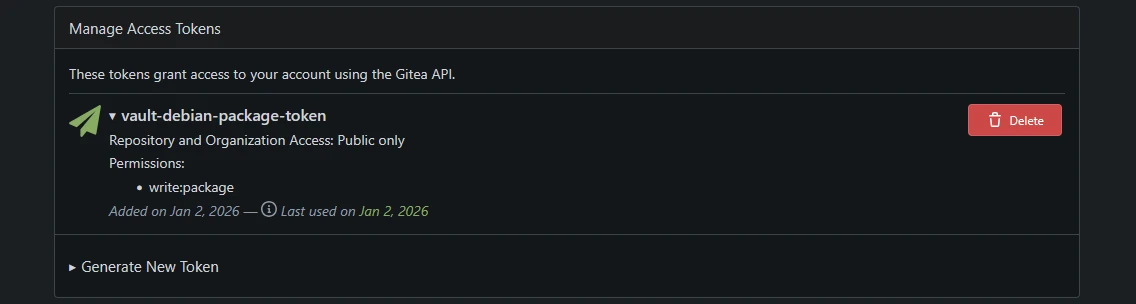
Keep this token safe. It’s the key to your automated workflow.
Publishing Debian Packages
Now for the fun part, uploading teb .deb file. Log in to the cross-compilation machine and let’s get started. In this example we will build and publish the .deb package of OpenOCD for the ARM architecture. Refer to the Cross-Compiling and the Debian Package post for more info.
- Build your package if you haven’t already. For ARM architecture, your package structure might be in
/arm64/pxg-openocd. Run:
dpkg-deb --root-owner-group --build arm64/pxg-openocd- Upload it to Gitea using
curl. The URL structure for an APT repository looks like this[base_url]/[distribution]/[component], wheredistributionrefers to the OS release (e.g., bookworm for Debian 12) andcomponentcategorizes software by license and dependencies. We’ll usemainfor simplicity.
curl --user USER:TOKEN -X PUT --upload arm64/pxg-openocd.deb https://gitea.local/api/packages/vault/debian/pool/bookworm/main/Replace TOKEN with your access token and USER with your builder username.
- Check your work. Your package should now appear under the Packages tab in your Gitea organization.

Installing OpenOCD on Our Raspberry Pi
Now that our package is in the registry, let’s install it on a Raspberry Pi. Before we can do that, we need to tell apt where to find our new registry.
- Add the Gitea Repository Key:
sudo curl https://gitea.local/api/packages/Vault/debian/repository.key -o /etc/apt/keyrings/gitea-Vault.asc- Add the source to your list:
echo "deb [signed-by=/etc/apt/keyrings/gitea-Vault.asc] https://gitea.local/api/packages/Vault/debian bookworm main" | sudo tee -a /etc/apt/sources.list.d/gitea.list- Update the system for the source list update to take effect:
sudo apt update- Now we are ready to install
pxg-openocd:
$ sudo apt install pxg-openocd
Get:1 https://gitea.local/api/packages/Vault/debian bookworm/main amd64 pxg-openocd amd64 0.12.0+dev-g66ea46184 [1,628 kB]
Fetched 1,628 kB in 0s (5,208 kB/s)
Selecting previously unselected package pxg-openocd.
(Reading database ... 243552 files and directories currently installed.)
Preparing to unpack .../pxg-openocd_0.12.0+dev-g66ea46184_amd64.deb ...
Unpacking pxg-openocd (0.12.0+dev-g66ea46184) ...
Setting up pxg-openocd (0.12.0+dev-g66ea46184) ...- Test it out:
$ openocd -v
Open On-Chip Debugger 0.12.0+dev-02117-g66ea46184 (2026-01-02-10:37)
Managing the Package
When we release a new version of OpenOCD, we just update the version number in the control file, rebuild, and upload. On our Raspberry Pi, run:
sudo apt update
sudo apt --only-upgrade install pxg-openocd
To remove the package:
sudo apt remove pxg-openocdTo remove everything:
sudo apt purge pxg-openocdWhat´s Next?
We have successfully moved from manual file transfers to a professional, centralized distribution system. By hosting our own Gitea Package Registry, we can now manage OpenOCD updates across an entire fleet of devices with a simple apt update.
However, traditional installations have their limits. If you build a tool for Debian Bookworm, it will likely break on Bullseye or Trixie due to library mismatches. Furthermore, installing everything directly onto your OS risks library conflicts and "configuration drift" often requiring a full OS re-image just to start fresh.
In the next post, Running OpenOCD in Docker: A "Tools as Code" Approach to Embedded DevOps, we solve this by moving our entire embedded stack into Docker.
All Posts in This Series
- Part 1: Getting Started with OpenOCD: A Beginner's Guide
- Part 2: Remote Debugging with Raspberry Pi and OpenOCD
- Part 3: Cross-Compiling OpenOCD: A Step-by-Step Walkthrough
- Part 4: Simplifying OpenOCD Deployment with a Debian Package
- Part 5: Automating OpenOCD Distribution with a Private Gitea Package Registry (Current Post)
- Part 6: Running OpenOCD in Docker: A "Tools as Service" Approach to Embedded DevOps
- Part 7: Creating a Containerized Remote Serial Interface with Docker and Socat
- Part 8: Remote View Raspberry Pi Camera Stream with Docker

How to Use RTT in Embedded Rust: Setup and Logging
Learn how to use RTT in Embedded Rust for fast, non-blocking debug logging. This guide covers setup, rtt-target usage, OpenOCD configuration, and VS Code auto-start.
How to Use a Raspberry Pi as a Remote OpenOCD Debugger
Learn how to turn a Raspberry Pi into a remote debugging server for the RP2040 using OpenOCD, a complete with step-by-step setup and instructions for building OpenOCD from source to resolve hardware compatibility issues.
Cross-Compiling OpenOCD: A Step-by-Step Walkthrough
Learn how to build OpenOCD binaries on Ubuntu 22.04 for both the ARM64 and AMD64 target architectures. A great way to share a consistent OpenOCD build across your Debian systems
Whether you're building something new, fixing stability issues, or automating what slows your team down — we can help.