
The Risks of Using Your ISP's Default DNS (And How to Change It)
Your router’s default DNS resolver is likely your ISP, and they can see every site you visit. Learn how to switch to a privacy-focused DNS provider and why even that might not be enough to stop snooping.


The Problem with Your ISP’s DNS Resolver
When you connect to the internet, your router or device automatically uses your ISP’s DNS servers, assigned via DHCP (Dynamic Host Configuration Protocol). While convenient, this setup comes with a major downside: your ISP can track, log, and even sell your browsing history.
For example, let’s look at a typical Telia Estonia WAN DNS configuration using dnscheck.tools. The results show two sets of DNS resolvers, one for IPv4 and one for IPv6, both controlled by the ISP. Since DNS queries are sent in plaintext, your ISP can monitor every site you visit, build a profile of your online habits, and potentially share or sell that data.
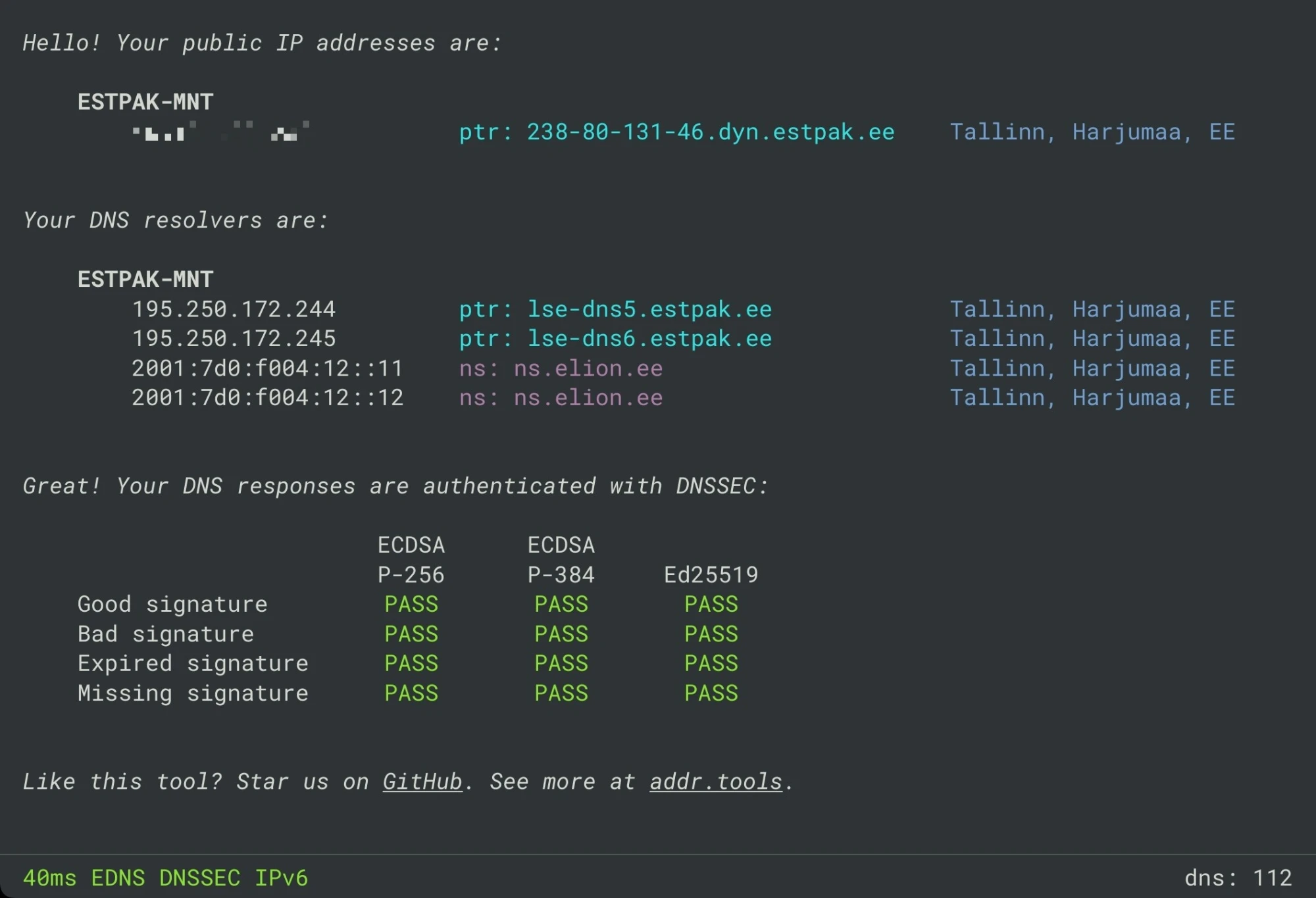
So, what are the alternatives?
Popular DNS Resolvers: Privacy vs. Convenience
Switching to a third-party DNS resolver can improve privacy, but not all providers are equal.
A popular alternative is Google's public DNS at 8.8.8.8. While Google's DNS service is convenient, although they state that they do minimal logging, they could still build detailed user profiles using various tracking methods (more insights here).
For a more secure and privacy-focused DNS option, you might consider using Quad9, with its IP address 9.9.9.9, which offers robust protection against malicious domains. Alternatively, Cloudflare, accessible via 1.1.1.1, provides a fast and privacy-centric service that aims to improve your browsing speed and security. If you prefer more control, setting up your own DNS resolver using Unbound as the upstream DNS resolver.
Here’s a quick comparison:
| DNS Provider | Privacy Features | Logging Policy | Security Features |
|---|---|---|---|
Quad9 (9.9.9.9) |
Blocks malicious domains | No logging of IPs | DNSSEC, malware filtering, DNS over TLS (DoT), DNS over HTTPS (DoH) |
Cloudflare (1.1.1.1) |
No tracking, minimal logs | Logs deleted after 24h | DNS-over-TLS (DoT), DNS-over-HTTPS (DoH) |
Google (8.8.8.8) |
Anycast Routing, No Personal Correlatio | Temporary and permanent logging | DNS-over-TLS (DoT), DNS-over-HTTPS (DoH) |
| Unbound (Self-Hosted) | Fully private, runs locally | No external logging | DNSSEC validation |
Hands-On: Switching Your DNS Resolver
Let’s replace your ISP’s DNS with a privacy-focused alternative. Here’s how to do it on a Ubiquiti router (steps may vary for other brands):
- Access your router’s admin interface (usually via
192.168.1.1or similar). - Navigate to "Networks", select your network, and find the "DNS Server" settings.
- Deselect "Auto" and enter your preferred DNS server (e.g.,
9.9.9.9for Quad9). - Save the changes
If you list multiple DNS servers, your device will use all of them, not just a primary and backup. This can lead to inconsistent results if one server is slower or less reliable.
Before verifying the upstream DNS resolver, reconnect to your network to apply the new settings.This step is important because the DHCP server assigns a lease time with the IP address and DNS server details. Your device will try to renew this lease before it expires, which can take some time. Reconnecting is the quickest way to ensure the changes take effect.
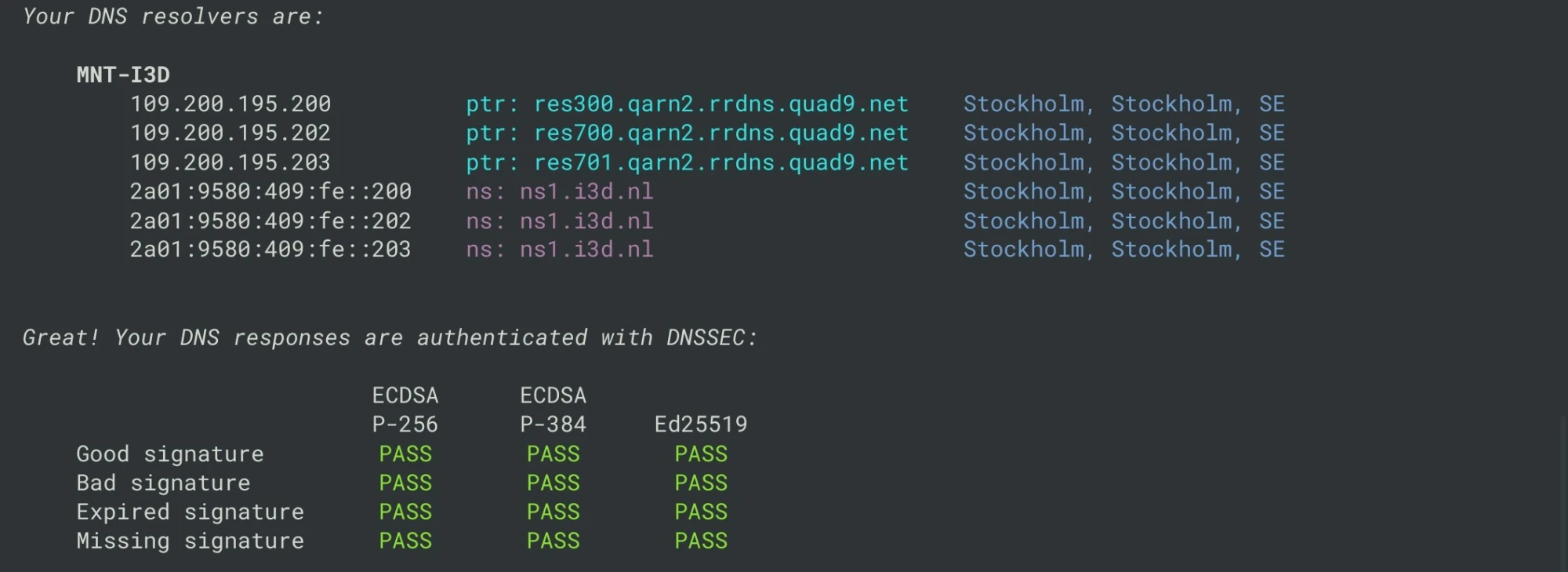
After updating, revisit dnscheck.tools. You should now see your new DNS resolver in use:
Transparent DNS Proxy: How ISPs Can Hijack Your Queries
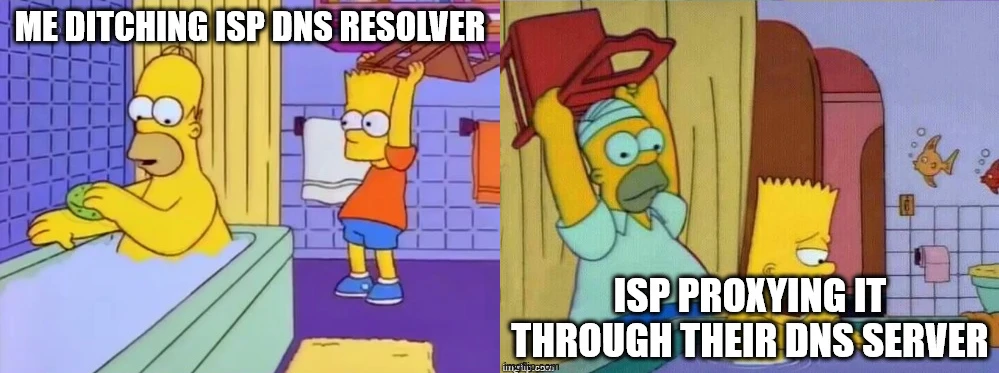
Even if you switch to a custom DNS resolver, some ISPs use transparent DNS proxies to intercept and redirect your queries back to their own servers. This means that even if our network is carefully set up to use 9.9.9.9, those queries could still be hijacked and forced through the ISP's servers. Since DNS on port 53 is sent in plain text, it's vulnerable to this kind of manipulation.
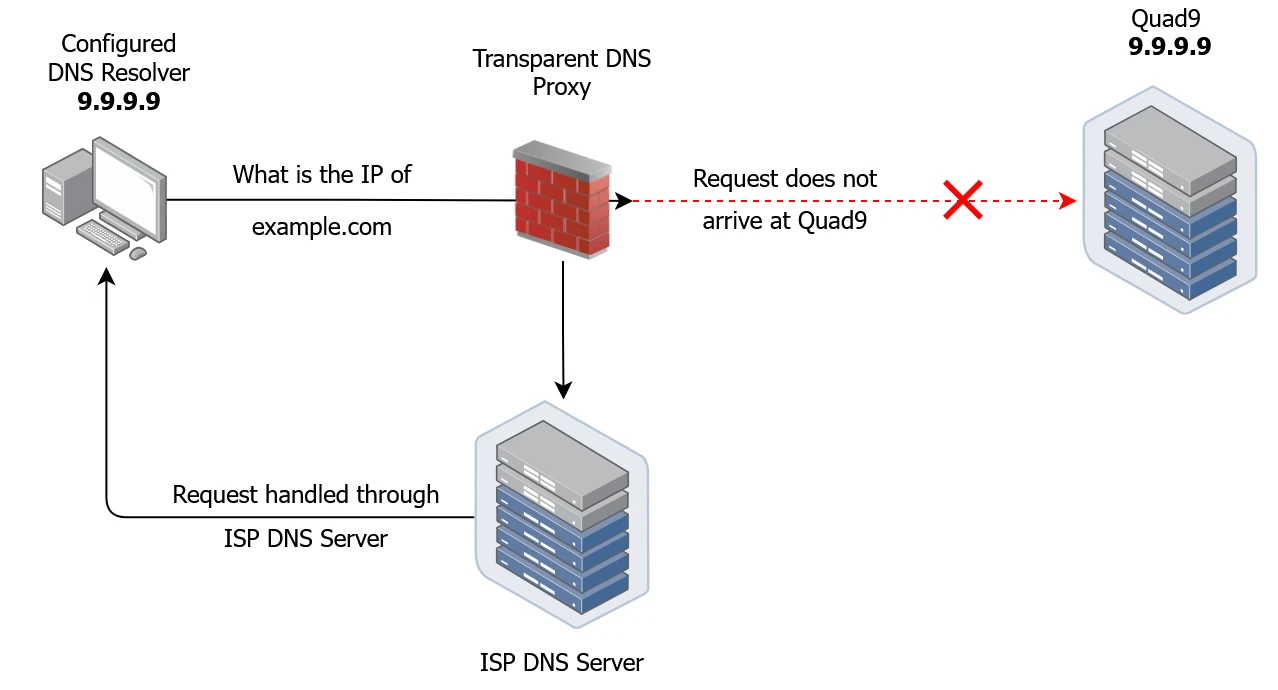
- Our device queries the designated DNS resolver, set to
9.9.9.9, to obtain the IP address forexample.com. - However, instead of reaching the Quad9 DNS server, the request is redirected to the ISP's DNS server.
- The remaining DNS resolution process proceeds in the same way as outlined in Part I.
Even if our new custom privacy-focused DNS resolver is working perfectly and our ISP isn't hijacking the requests, our DNS queries are still out in the open, vulnerable to surveillance.
| Aspect | Custom DNS (Port 53, No Encryption) | ISP’s Own DNS |
|---|---|---|
| Can ISP see DNS queries? | ❌ Yes (queries are plaintext) | ❌ Yes (ISP controls the resolver) |
| Can ISP see exact domains? | ❌ Yes | ❌ Yes |
| Can ISP modify/block queries? | ❌ Possible via DPI & blocking | ❌ Direct control, easy to censor |
| Can ISP track which user makes the request? | ✅ Not always (unless tracking IPs) | ❌ Yes (linked to ISP account) |
| Can ISP sell data? | ✅ Harder but still possible | ❌ Easier to monetize browsing habits |
Bottom line: Without encryption, your DNS queries are still vulnerable to surveillance, censorship, and manipulation.
What’s Next?
So far, we’ve seen how to switch away from your ISP’s DNS and explored the limitations of third-party resolvers. But even with a privacy-focused DNS provider, your queries can still be intercepted or bypassed.
In Part 3, we’ll explore DNS filtering, how to set up your own DNS sinkhole to block malicious domains, ads, and trackers. You’ll learn how to take full control of your network’s security and privacy.
We’ll even test how devices can bypass Pi-hole and how to lock it down further.
Stay tuned! After mastering sinkholes, we’ll dive into self-hosting a recursive DNS resolver (like Unbound) to eliminate reliance on public DNS providers entirely.

How to Use RTT in Embedded Rust: Setup and Logging
Learn how to use RTT in Embedded Rust for fast, non-blocking debug logging. This guide covers setup, rtt-target usage, OpenOCD configuration, and VS Code auto-start.
Simplifying OpenOCD Deployment with a Debian Package
Instead of manually copying binaries and dependencies across machines, you can package OpenOCD into a Debian .deb archive. This post walks through creating a custom package to simplify installation and distribution.

How to Strip Debug Symbols from Software (and Still Keep GDB Context)
Learn how to use objcopy to strip debug symbols from an ELF executable, protecting sensitive data without losing the ability to debug your code using an external .dbg file and GDB.
Whether you're building something new, fixing stability issues, or automating what slows your team down — we can help.